Save and platform guide
Scritchy Scratchy save export and import guide
Published August 30, 2026 · Updated September 1, 2026
Export a Scritchy Scratchy save, keep a recoverable backup, import it cautiously, and understand why an unofficial GitHub save record may not work with the browser demo.
Quick answer: can Scritchy Scratchy saves be exported and imported?
Yes. An official November 2025 demo update added save export and import through the clipboard. The feature was introduced so players could create their own backups and continue on another device or platform when the destination build accepts the same data.
Use the controls inside the game rather than expecting this website to read the save automatically. ScritchyScratchy.cc embeds the itch.io Unity build in a cross-origin frame. Browser security keeps that frame’s storage separate from the surrounding guide site, so the website cannot retrieve or replace the game’s private save data for you.
The paid PC release also lists Steam Cloud, but cloud synchronization and manual export are different systems. Steam Cloud can synchronize supported files for the same Steam account. A clipboard export gives you a separate copy that you control and can test with an in-game Import button.
How to export a Scritchy Scratchy save
Open Scritchy Scratchy and wait until the current session has finished loading. Open the settings or save menu, then choose the export control shown by that build. The official feature copies the save data to the clipboard; it does not necessarily download a file or display a success page.
Immediately paste the result into a new plain-text document. If nothing appears, keep the game open and try the export action again after allowing clipboard access. Do not replace the current installation, clear browser data, or start editing save files while the only copy may still be in the clipboard.
Give the file a descriptive name such as scritchy-save-browser-demo-2026-09-01.txt. Record the source platform and the version displayed in the game. Those details are more useful than a generic name like save-new.txt when several backups accumulate.
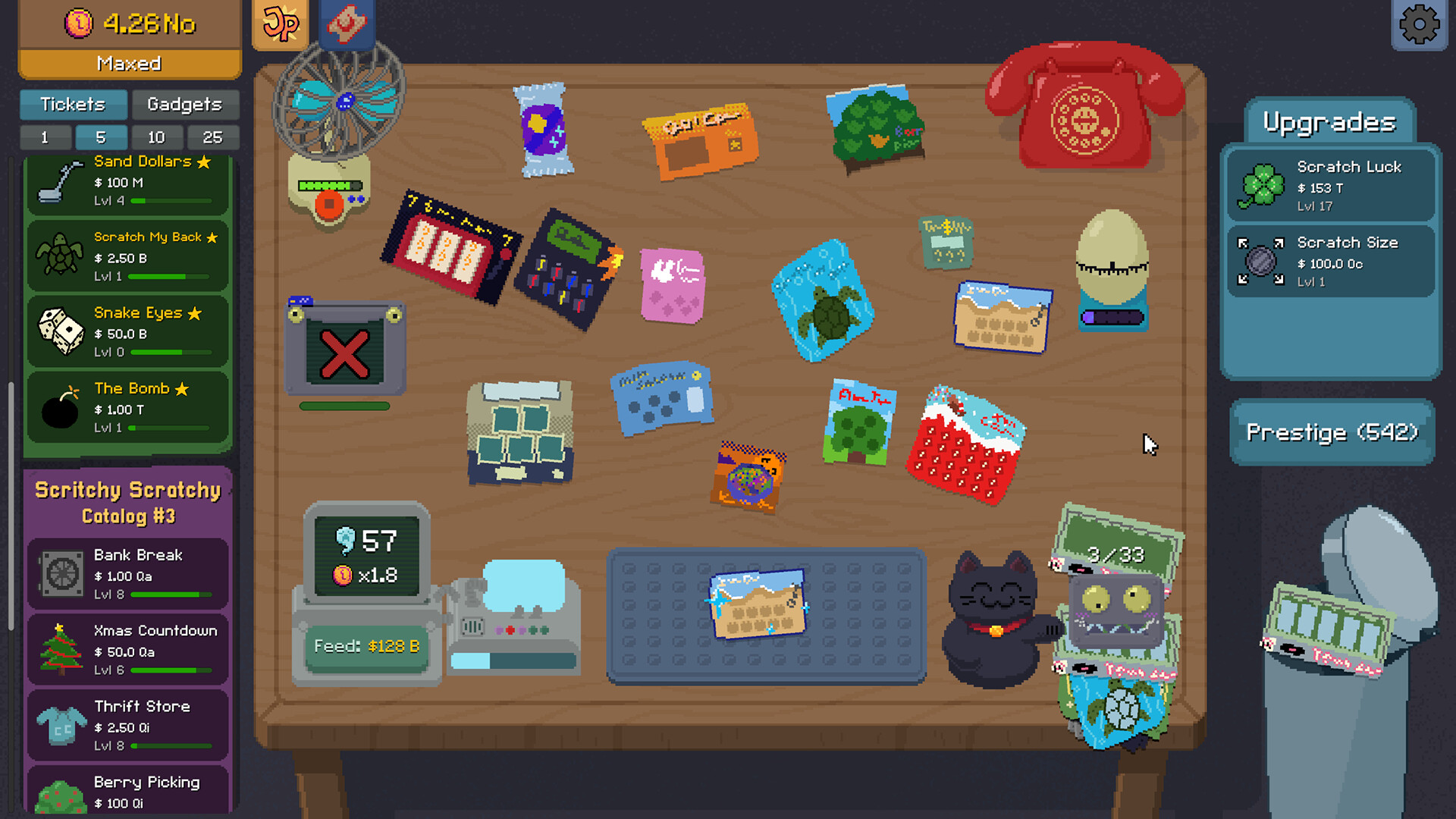
- Keep the first pasted export unchanged as the master backup.
- Create a second working copy before testing an import or manual edit.
- Store the file privately; a save can reveal play history and unlocked content.
- Retain at least one older known-good backup after a game update.
How to import a save without losing the destination progress
Before importing anything, export the destination device’s current progress. This produces a rollback copy if the incoming save is rejected, partially loaded, or older than expected. Keep the source and destination backups in separate files with clear names.
Open the backup you intend to use, select the complete contents, and copy them without adding commentary or Markdown formatting. Return to the game, open its Import control, and follow the confirmation shown by that version. Some builds may reload immediately after accepting the data.
Check the result before continuing to play. Verify money, ticket progression, Prestige currency and upgrades, gadgets, achievements, tokens, and Night Market cosmetics where those systems exist. Also close and reopen the game once to confirm that the imported state persists.
If the import reports an error, opens an empty run, or omits important fields, stop. Restore the destination backup instead of repeatedly overwriting the save. An import failure is often a version or platform mismatch, not proof that the backup should be edited until it passes.
Browser demo, Steam Cloud, and cross-platform limits
The official announcement confirms clipboard transfer in a demo-era build. It does not promise that every later Steam, itch.io, iOS, Android, or browser release exposes an identical menu or accepts every historical save schema. Check for Export and Import on both ends before treating a move as supported.
The browser demo embedded on this site is hosted by itch.io. Its local progress belongs to the itch.io game origin, not to ScritchyScratchy.cc. Clearing itch.io site data, using a private browsing session, changing browser profiles, or moving to another browser can therefore make the local run unavailable even when the surrounding website still loads normally.
Steam Cloud protects supported Steam save files, but it is not a universal converter. A cloud save, an itch.io browser export, a downloaded desktop save, and a mobile save can use different storage containers or game versions. Preserve both sides and verify the result rather than assuming that the newest platform will upgrade every older record.
The unofficial GitHub third-party save record
A public third-party project on GitHub contains an unofficial Scritchy Scratchy sample save record. The JSON is useful as a technical reference because it shows a visible save version, game version, progression dictionaries, upgrades, gadgets, achievements, and other fields in a readable record.
It is not an official recovery save and this site does not mirror or endorse it. The sample identifies itself as save version 0.1 for game version 1.0.30d. It also contains obviously altered values, including money around 2.79e247. That makes it a modified test or cheat record rather than a normal player backup.
The current itch.io browser demo is a different build line, so do not assume the GitHub JSON can be pasted into its Import control. It may be rejected, load incomplete progress, unlock unintended content, or damage the destination state. Inspecting the record in GitHub is safer than downloading and applying it. If you still test third-party data, use a disposable browser profile or a separately backed-up installation and never overwrite your only legitimate save.
- Source: ScritchyScratchyCheater on GitHub.
- Record: randomSave1.json.
- Status: third-party, modified, and not verified for the browser demo.
What to do when export, import, or recovery fails
First record the source platform, destination platform, visible versions, last successful session, exact error message, and whether the original save still opens. Do not reinstall, clear app data, disable cloud storage permanently, or delete local JSON files until recoverable copies exist.
On the desktop release, the developer has identified the Windows save directory under AppData/LocalLow/Lunch Money Games/Scritchy Scratchy. Steam Cloud can also place synchronized JSON data in Steam’s userdata area. These locations are relevant to desktop recovery; they do not grant the surrounding website access to a browser demo save.
Use the official support page when a reproducible problem remains. Describe the versions and steps first. Do not publish your private save contents in an open forum unless you have reviewed the data and intentionally decided to share it.
A safe save-transfer checklist
Treat a transfer as complete only after the destination opens correctly, the important progression fields match, and the imported state survives a restart. Until then, preserve the original installation and every known-good backup.
- Confirm that both builds display compatible Export and Import controls.
- Export the source save and the destination save before replacing anything.
- Label each copy with platform, version, and date.
- Import only an unchanged copy from a source you understand.
- Verify progress, restart the game, and keep the rollback copy.
- Treat public GitHub records as technical references unless their compatibility has been independently tested.